Funeral Slideshow Photo Tips: Prepare Pictures for the Screen
Choose, label and test photographs for a memorial slideshow while keeping faces, proportions and context intact.
Decide what the screen needs to do
A slideshow can accompany a gathering, support a spoken tribute or play quietly while guests arrive. Those uses need different pacing and different amounts of text. Speak with the person operating the screen before preparing files. Ask whether they need still pictures, a presentation or a finished video, and who will control playback. The memorial kit provides a coordinated still screen image; it does not assemble an animated slideshow or arrange music rights. Keep those tasks separate so nothing important is left until the event.
Choose a manageable selection
Look for photographs that tell different parts of the person’s story rather than choosing many nearly identical portraits. A small selection that people can follow may be more effective than a crowded sequence. Ask relatives for the best original file they have, not a screenshot from a messaging conversation. Keep a list of who provided each photograph and any restrictions they mention. Permission to possess a photograph is not always permission to share it with a wider audience, so settle family concerns before preparing public material.
Keep names and context beside the originals
Use clear filenames or a separate note to record the people, approximate occasion and order you intend. Do not put uncertain dates into a slide as if they are verified. If no one knows the year, leaving it out is better than guessing. Keep the source files in a separate folder and work on copies. When several people help, agree who maintains the final set so a corrected name or a replaced photo does not disappear in a different version of the presentation.
Preserve the complete photograph
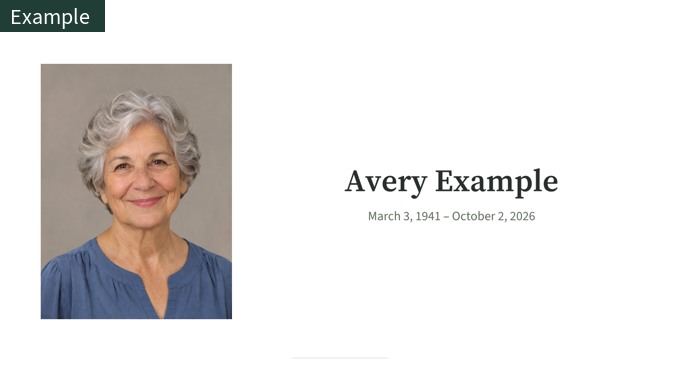
Screens and old prints often have different proportions. Filling a wide screen with a tall portrait can remove the top of the head or someone standing beside it. Use margins, a neutral background or a smaller picture area instead of stretching the image. Inspect every slide at the intended aspect ratio. A montage that looks acceptable in a small editing window may hide an important face when shown full screen. The kit screen layout keeps the photograph complete and gives the name its own space.
Use restoration only when it helps
Light damage or fading may improve, but a restored photograph can change teeth, glasses, eyes and small writing. Compare the selected version with the original before adding it to a slideshow. Natural stays closer to the source; Sharper can redraw more detail. A colorized black-and-white image is an estimate, not a record of the original colors. Label processed versions in your working files and ask someone familiar with the person whether the chosen portrait still feels right. You do not need to process every picture.
Check text from the back of the room
A small caption that reads comfortably on a laptop can be difficult on a venue screen. Use a short name or a brief sentence and leave enough space around it. Keep important wording away from the edges because some display settings cut off part of the picture. Test the file on the actual equipment if possible. Look for stretched faces, clipped names, unexpected menus and changes in brightness. Ask the operator to show one bright and one dark photograph rather than checking only the opening slide.
Prepare playback and a backup
Agree which computer or device will play the presentation and which connection the venue supports. Test the complete sequence, not just the image files, and check any audio permissions separately. Keep a second copy of the final files in a format the operator can open. Avoid depending on an online editing session or an expiring download link during the service. Download your chosen photo-tool results before their deletion period ends, and keep the complete kit files locally if you are using its screen image.
Review once more with the organizer
Ask one person to check names and dates and another to check that the order and selection feel appropriate. Read captions without looking at the photographs so spelling errors are easier to notice. Then watch the sequence without editing it, at a realistic viewing distance. Leave time to remove a picture or simplify a slide if the family prefers. A calm, dependable presentation is more useful than an elaborate design that has not been tested. The final aim is recognition and remembrance, not the largest possible number of effects.