Before and after examples
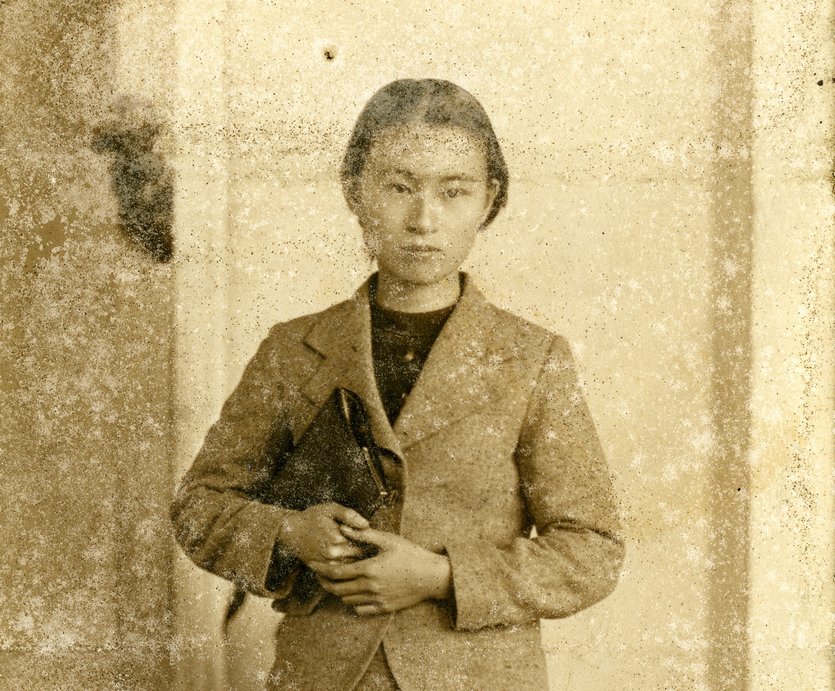
Before
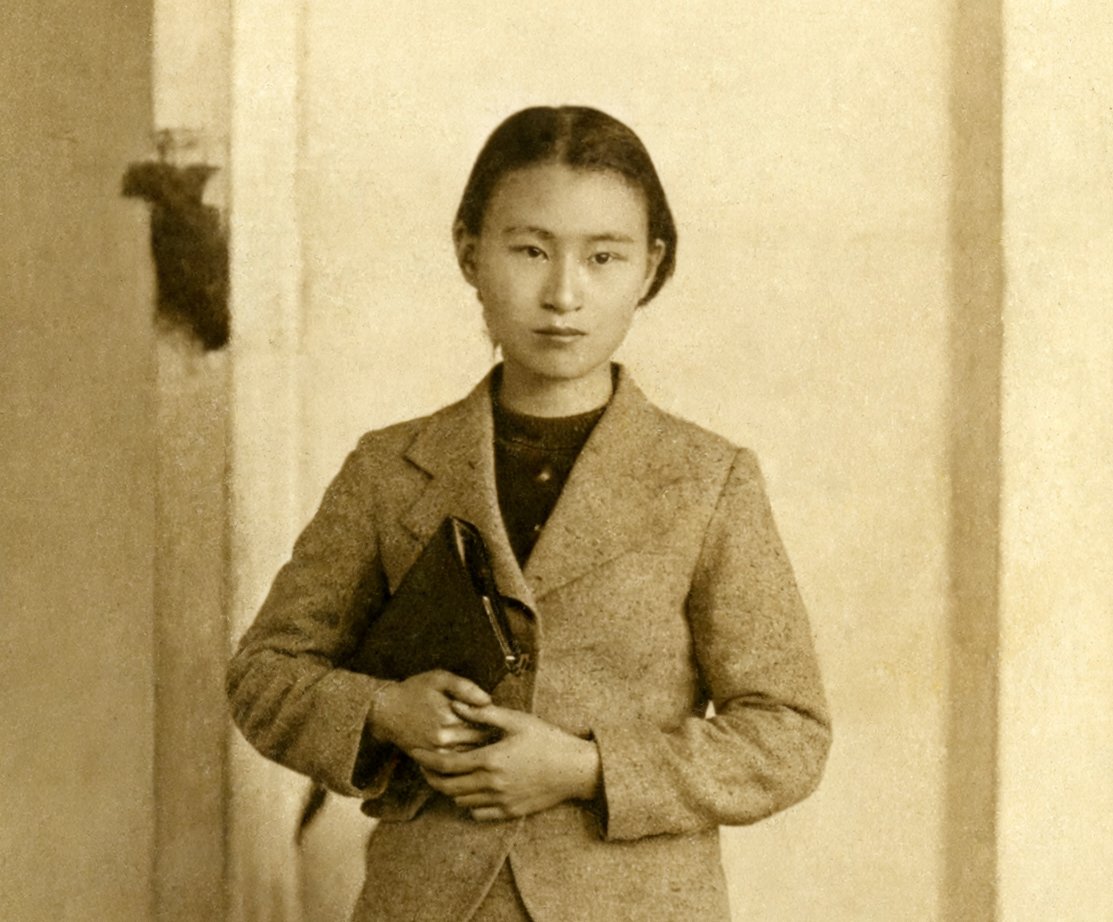
After
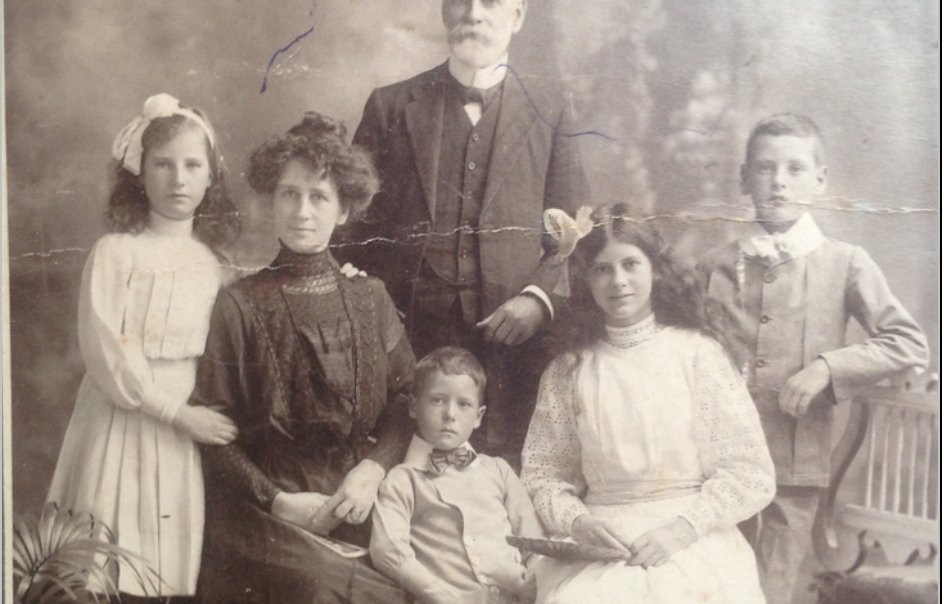
Before
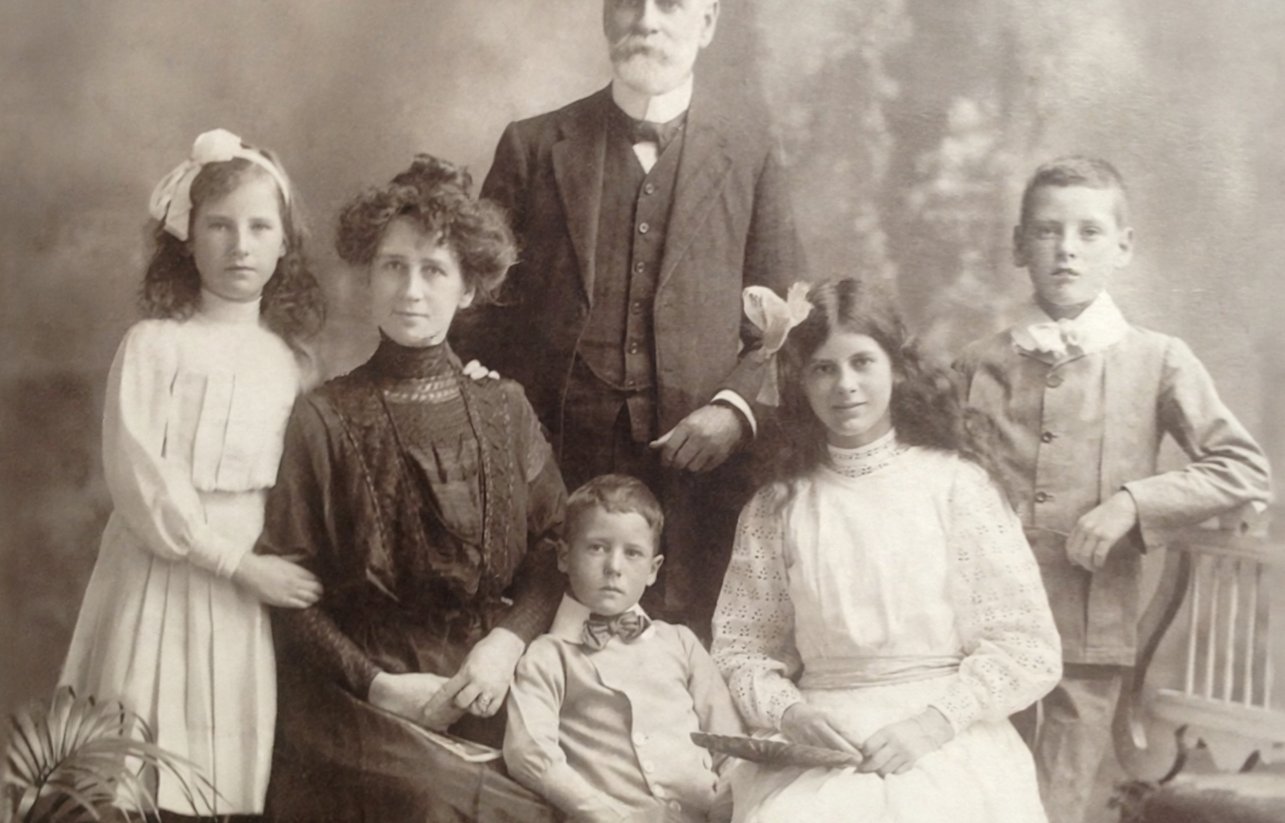
After
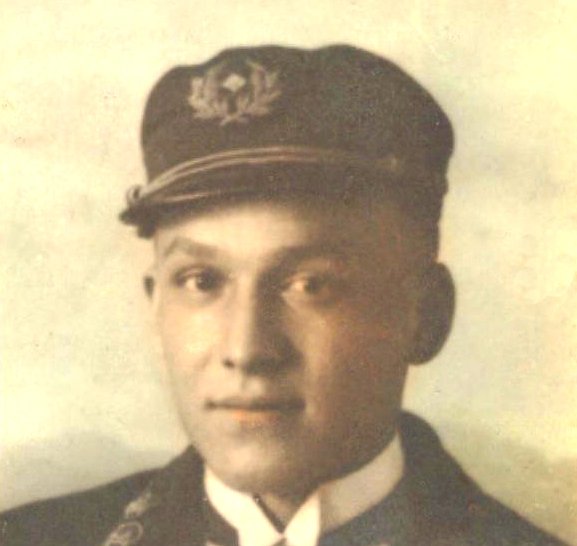
Before
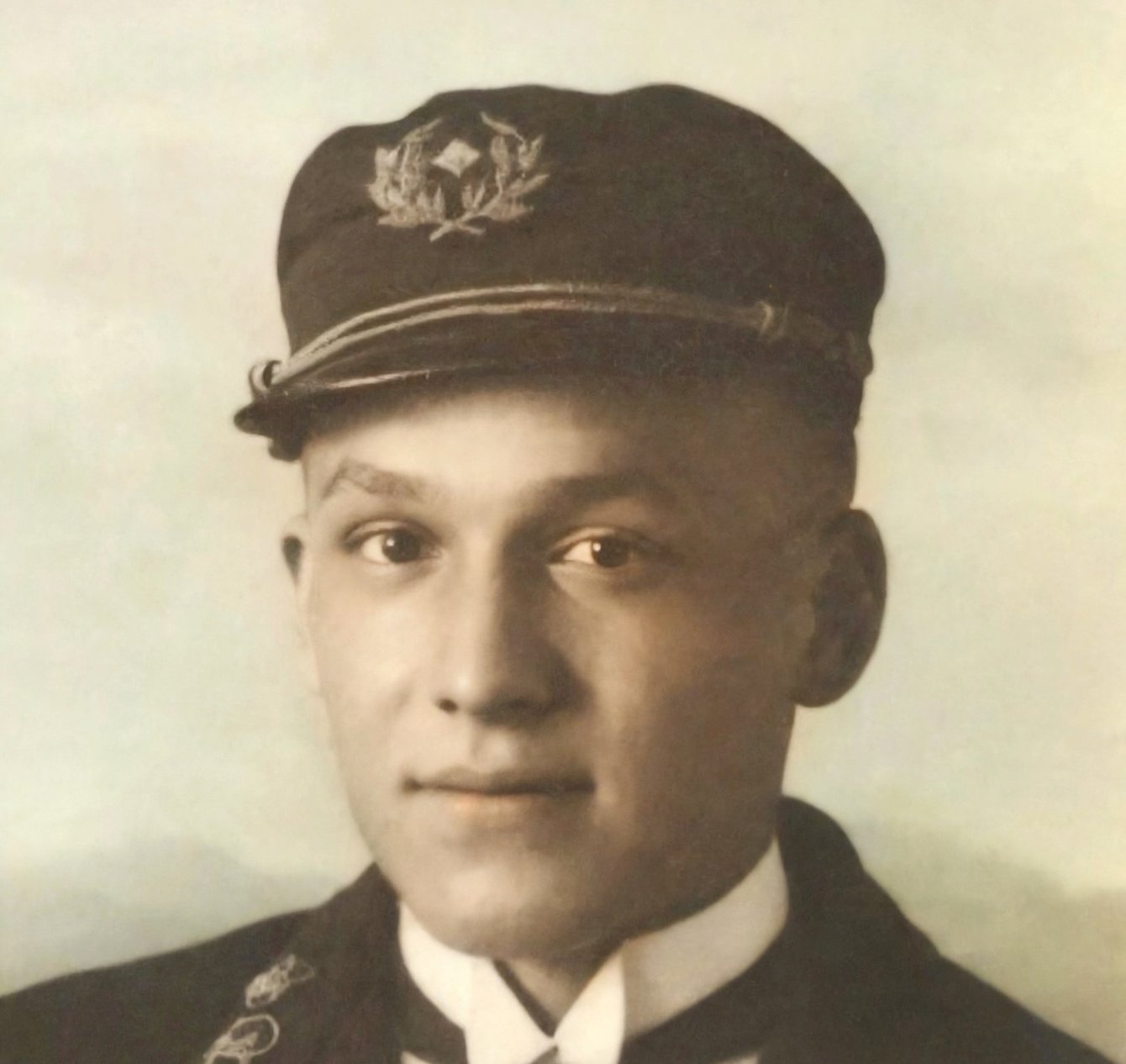
After
Best for
- Paper photographs with creases and scratches
- Faded family portraits and group photos
- Old prints with dust, spots or uneven fading
Not ideal for
- Photographs with large missing areas
- Documents whose small writing must stay exact
A practical starting point for an old photograph
Old photo restoration can make a faded print easier to enjoy, but the result should be treated as a new interpretation alongside your original. Light scratches, spots, creases and uneven fading may improve. Missing parts of a face, large tears and tiny lettering are much less certain. Start with the clearest scan or photograph you have, not a screenshot of a screenshot. If you have several copies, compare them before choosing the source.
Natural and Sharper serve different purposes
Natural is the first version and stays closer to the photograph. Sharper is an optional separate version that adds detail and includes an enlargement step. It can redraw more of a face or background, so more apparent detail is not automatically more faithful. Compare the original with each version at a useful size. If glasses, teeth, eyes or text change, keep Natural or return to the original. You do not need to generate Sharper for every photo.
Three steps to a useful comparison
First, upload a JPG, PNG or WebP image within the displayed file and pixel limits. Second, let Natural finish and compare it with your original, especially around faces and writing. Third, download a version you prefer, optionally try Sharper, or delete the photo and all its versions. No signup is needed. An unsuccessful processing task does not consume a free use.
Check your original first
Keep an untouched copy of the original file. Look at faces, glasses, jewelry, clothing edges and any writing before you start. Those are useful reference points when you compare the result. A sharper-looking image can contain newly estimated details; extra pixels do not establish what was really in the scene.
Choose a print size from the actual result
Read the output dimensions on the result page rather than using the dimensions of your scan. Divide pixels by inches to estimate print resolution, or use the print size calculator. Paper, viewing distance and the printer also matter. Try one small print before ordering several copies, and ask the printer to preserve the full image rather than silently filling and cropping it.
Color and badly damaged areas
Restoration aims to retain the existing color or monochrome character. It does not discover missing historical information. A clearly colored source that comes back almost neutral is rejected and retried once; if it still fails, it is not offered as a successful restoration. Very faded sources need a cautious visual check because there may be little dependable color left. For a black-and-white image, use Colorize only if you want estimated colors.
Keep the file useful beyond the screen
Download a copy before the retention period ends. Our photo-tool copies are deleted within 24 hours, and you can request deletion sooner from the result page. A memorial kit uses its own separate photo copy and has a separate 30-day period. If you decide to make one, choose the version you actually checked; the result page lets you transfer that selected image without repeating the repair.
Questions about this tool
What can old photo restoration repair?
Scratches, spots, creases and fading may improve. Large missing areas and tiny writing can remain damaged or be redrawn.
What is the difference between Natural and Sharper?
Natural stays closer to the photo and returns about 2 megapixels. Sharper adds detail and a 2× step, normally returning about 4 megapixels. Exact dimensions are shown with the result.
Does Restore add color?
Restore keeps the existing color or monochrome character. Use Colorize separately if you want estimated color for a monochrome photograph.
Is this free, and do I need an account?
No signup is needed. Free daily limits are 3 restorations, 1 Sharper version, 1 colorization and 5 enlargements per visitor. Failed processing does not use a free allowance; site-wide budget limits can pause processing.
When are my photos deleted?
Our copies of photo-tool originals and results are deleted within 24 hours. You can delete sooner from the result page. A memorial kit is separate and has its own 30-day period.
Can a face or small detail change?
Yes. Faces, glasses, teeth, jewelry and writing may change. Compare every important detail with the original before downloading or printing.