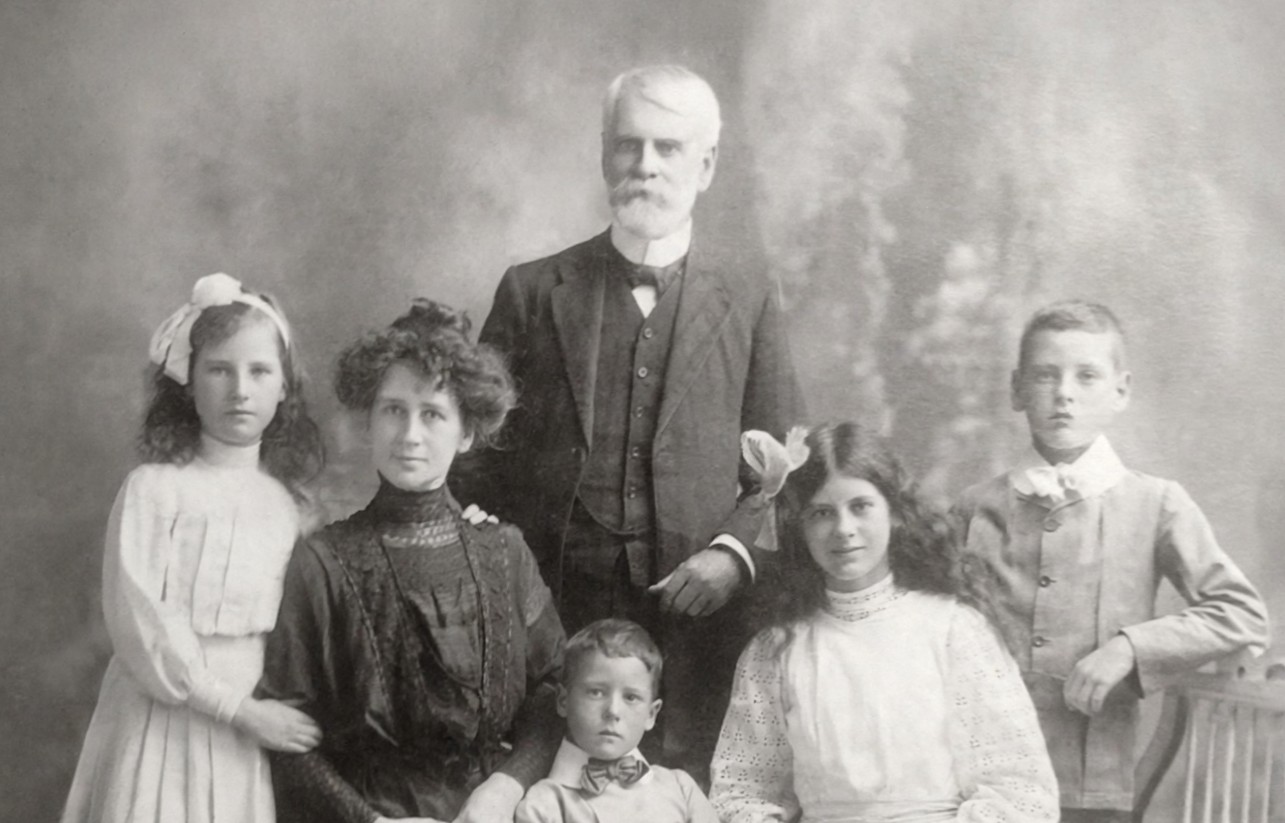
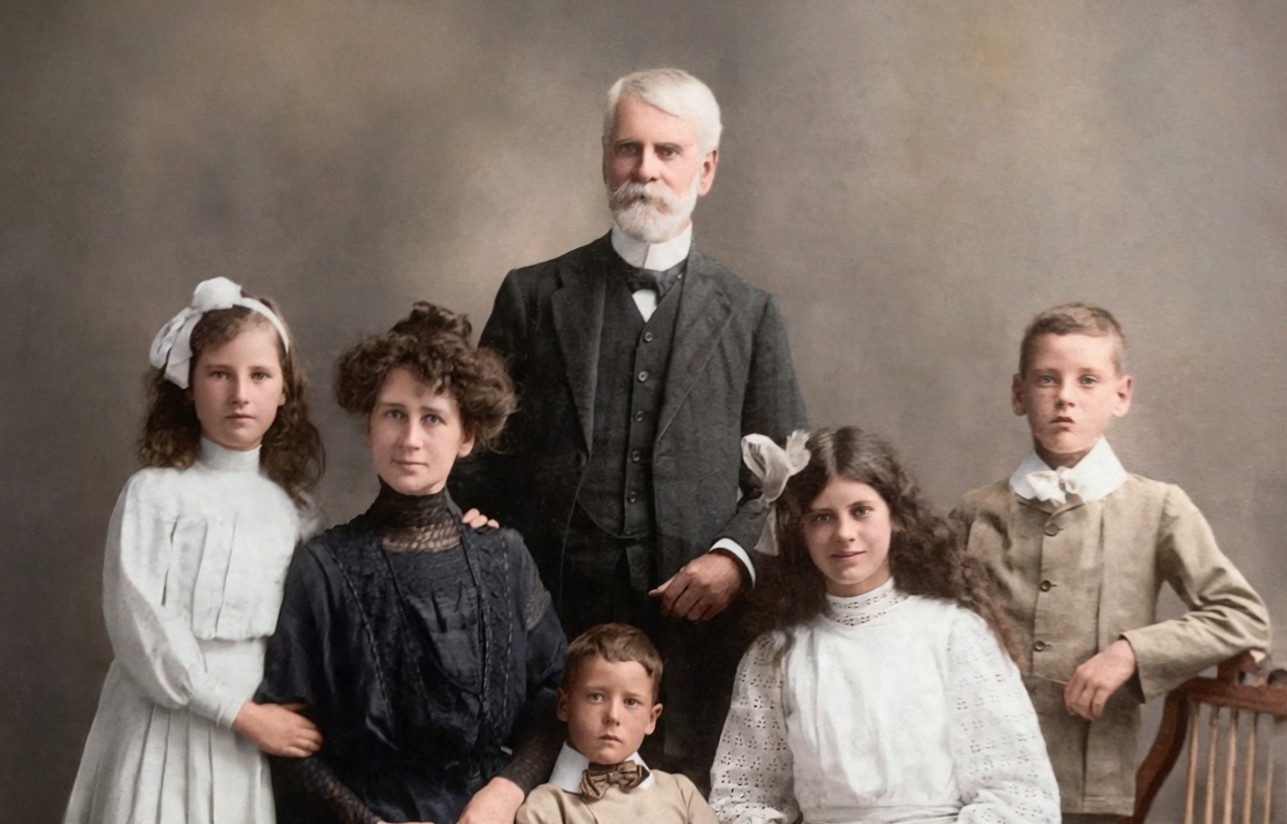
Before and after examples
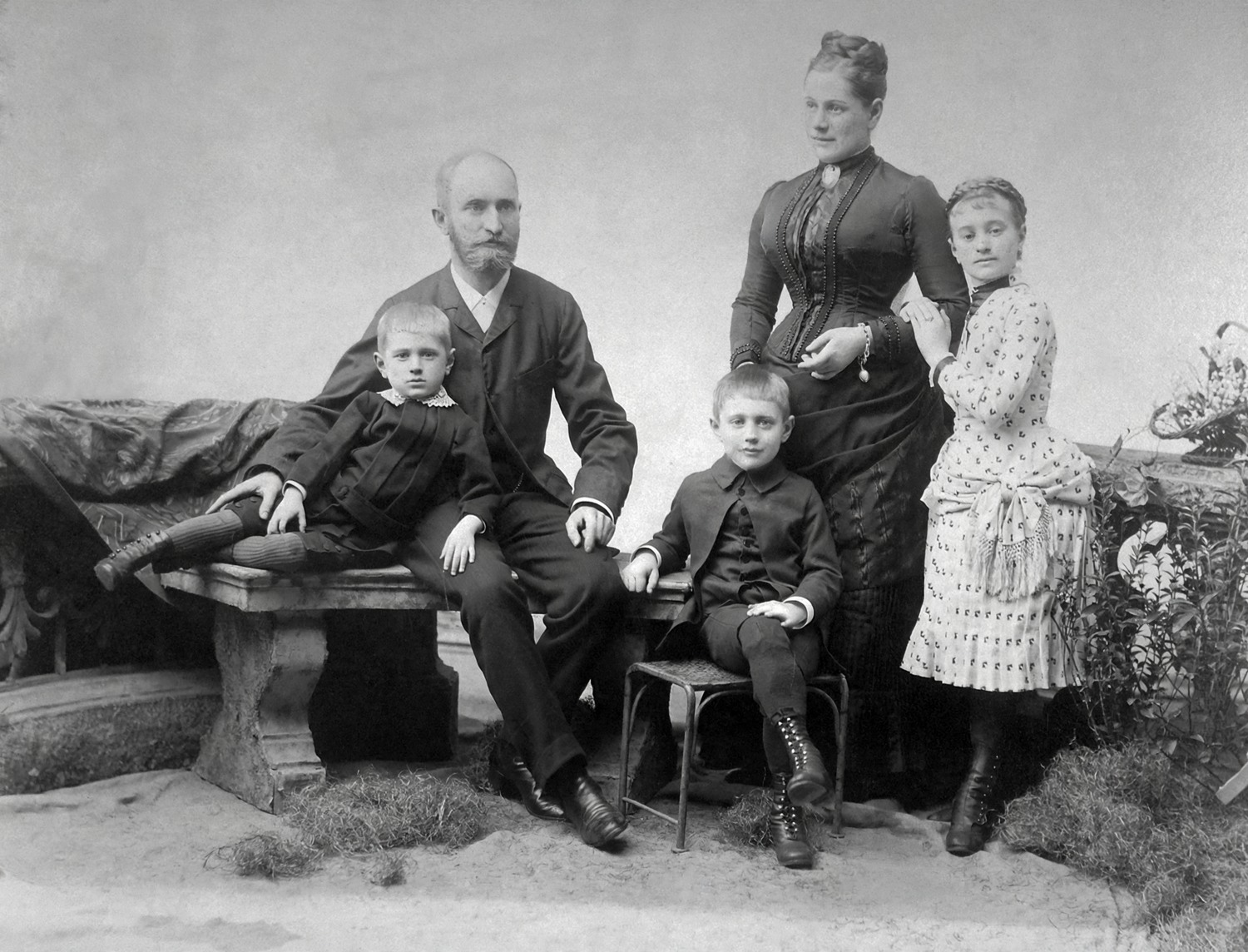
Before
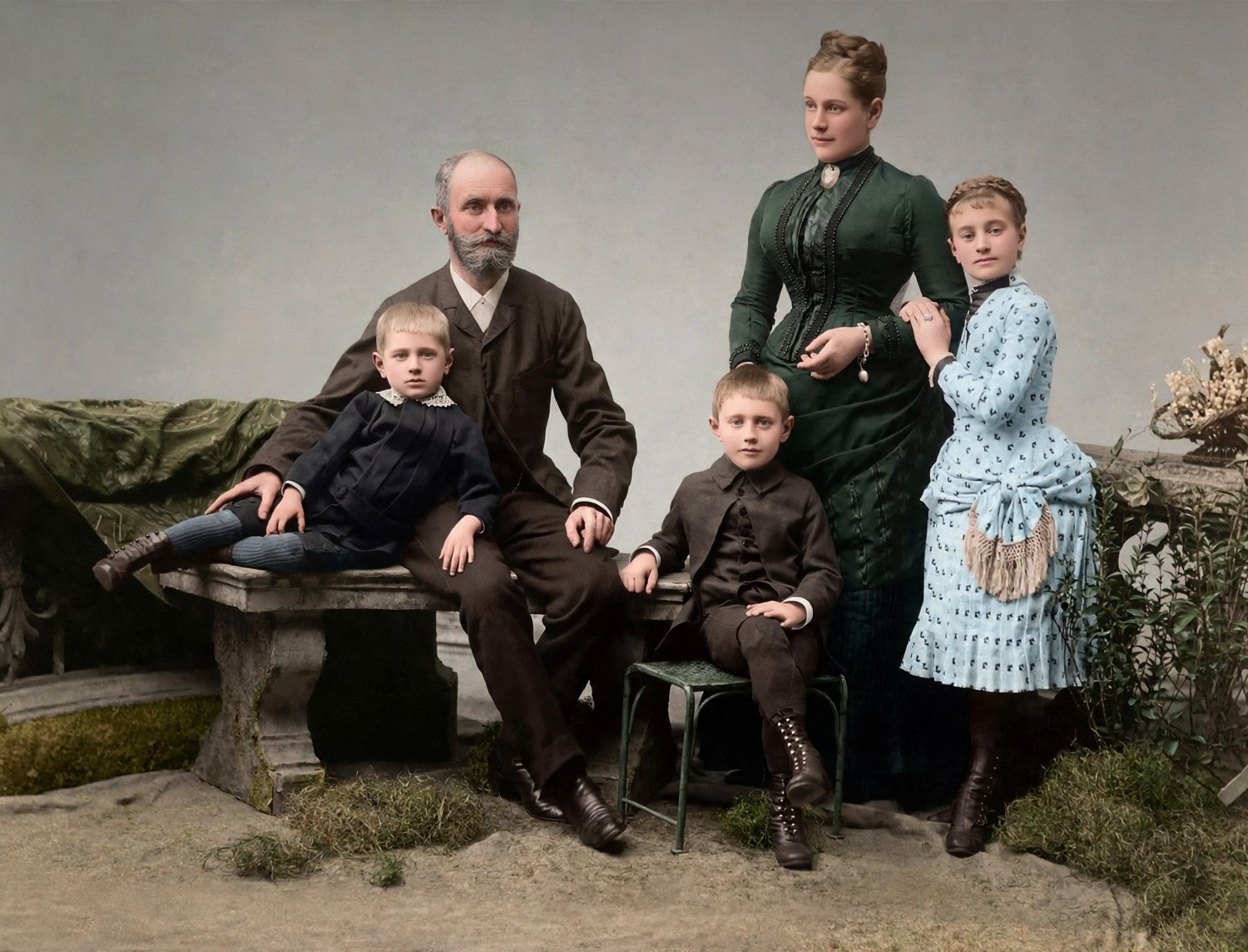
After
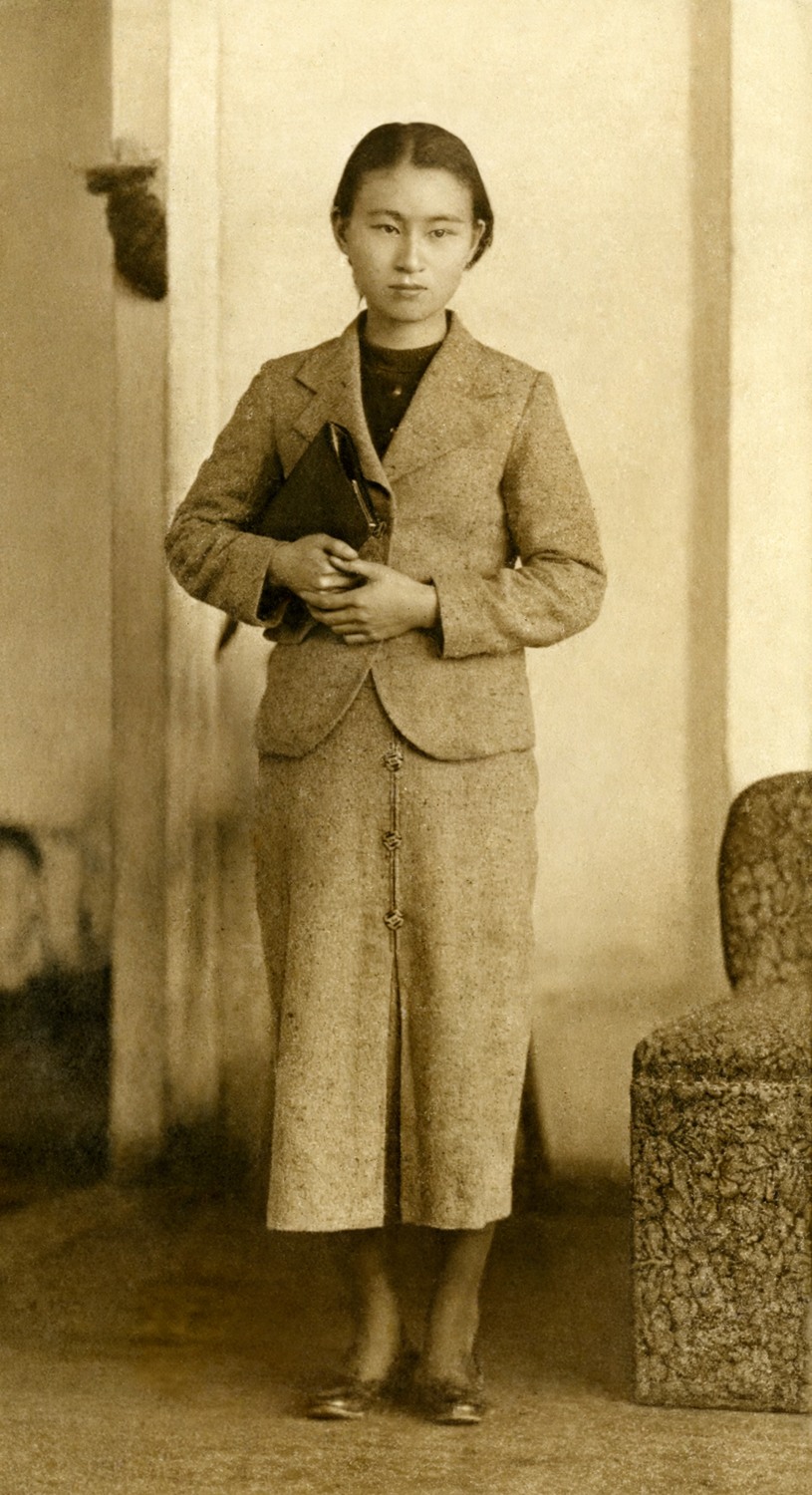
Before
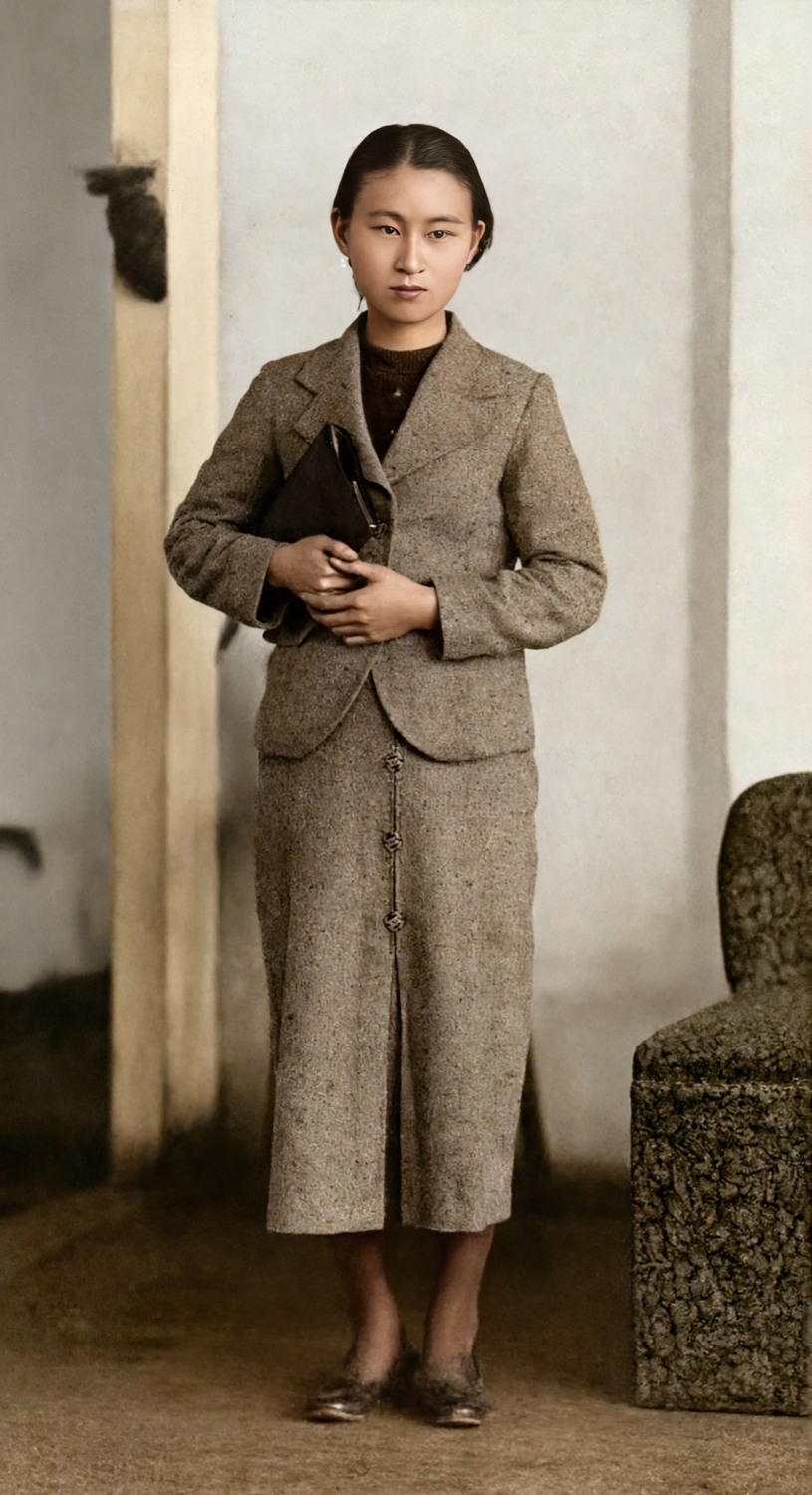
After
Best for
- Clear black-and-white portraits
- Monochrome family and group photographs
- Black-and-white photos already restored
Not ideal for
- Work requiring historically exact colors
- Deeply scratched photographs that need restoration first
Estimated color, with the original beside it
A black-and-white photograph does not contain a record of the original colors. This tool makes plausible estimates for skin, clothing and surroundings. The result can be a useful family keepsake, but it should not be described as historically exact. If you know the real uniform, garment or eye color, compare the estimate against that knowledge. Keep the monochrome file, and label a shared colorized copy so other people understand what it is.
Begin with a clear monochrome image
Colorize is best suited to reasonably clear portraits and group photographs. Dust, creases and deep damage may still be visible after colorization. If those are the main problem, try Restore first and inspect the repaired version before adding color. A poor scan cannot be made reliable simply by adding color, and a face that is already ambiguous may change in the generated result. Avoid using the result as evidence about the person or scene.
Three steps to estimated color
First, upload the clearest JPG, PNG or WebP copy you have, with the complete photograph and no unnecessary surrounding page. Second, run Colorize and compare face structure, clothing edges and small writing with the original. Third, download a copy if the estimate is useful, or delete it. You can try again within the displayed per-photo limit, but another attempt is another estimate rather than a guarantee of a historically correct palette.
Check your original first
Keep an untouched copy of the original file. Look at faces, glasses, jewelry, clothing edges and any writing before you start. Those are useful reference points when you compare the result. A sharper-looking image can contain newly estimated details; extra pixels do not establish what was really in the scene.
Choose a print size from the actual result
Read the output dimensions on the result page rather than using the dimensions of your scan. Divide pixels by inches to estimate print resolution, or use the print size calculator. Paper, viewing distance and the printer also matter. Try one small print before ordering several copies, and ask the printer to preserve the full image rather than silently filling and cropping it.
Judge color separately from detail
A pleasing palette can make a photograph feel more familiar while hiding changes in a face or background. Compare shapes first, then judge skin tone, clothing and overall balance. Watch for color bleeding across a sleeve, unusual patches on skin or inconsistent colors on the same object. If a result is distracting, keeping the original monochrome photograph is a valid choice. There is no need to colorize every old photograph.
Share with context and keep your own copy
Photo tools are free within the displayed daily allowances, with no signup. Our copies are stored privately and deleted within 24 hours; you can delete sooner from the result page. Download anything you want to keep before expiry. A memorial kit can use the selected result as a separate copy, with its own retention period. Before printing or sharing, tell family members that the colors are estimates and check that they are comfortable with the chosen version.
Questions about this tool
Are these the original colors?
No. Colorize produces plausible estimates. It cannot know the original colors of clothing, eyes or the scene.
Should I repair scratches first?
If damage is the main problem, try Restore first and inspect the repair before colorizing it.
Can I try a different result?
Up to two regenerations are available per photo. Each replaces the current colorized result, so download a version before replacing it if you want to keep it.
Is this free, and do I need an account?
No signup is needed. Free daily limits are 3 restorations, 1 Sharper version, 1 colorization and 5 enlargements per visitor. Failed processing does not use a free allowance; site-wide budget limits can pause processing.
When are my photos deleted?
Our copies of photo-tool originals and results are deleted within 24 hours. You can delete sooner from the result page. A memorial kit is separate and has its own 30-day period.
Can a face or small detail change?
Yes. Faces, glasses, teeth, jewelry and writing may change. Compare every important detail with the original before downloading or printing.