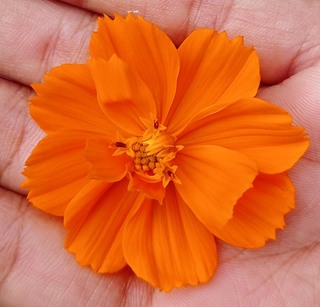
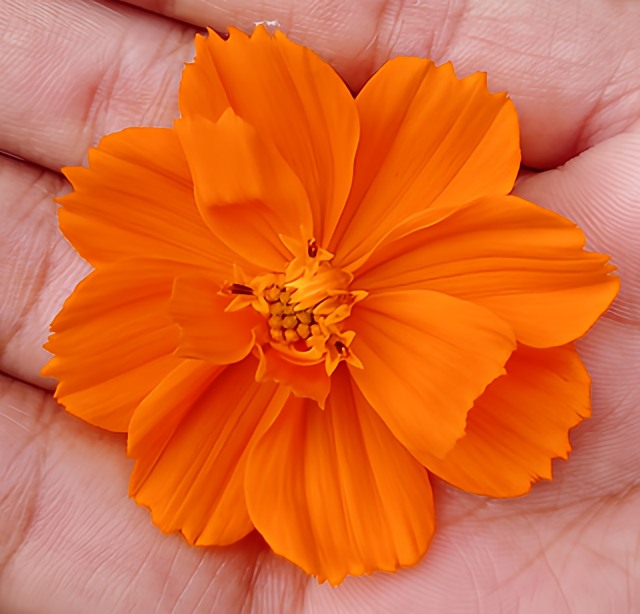
Before and after examples
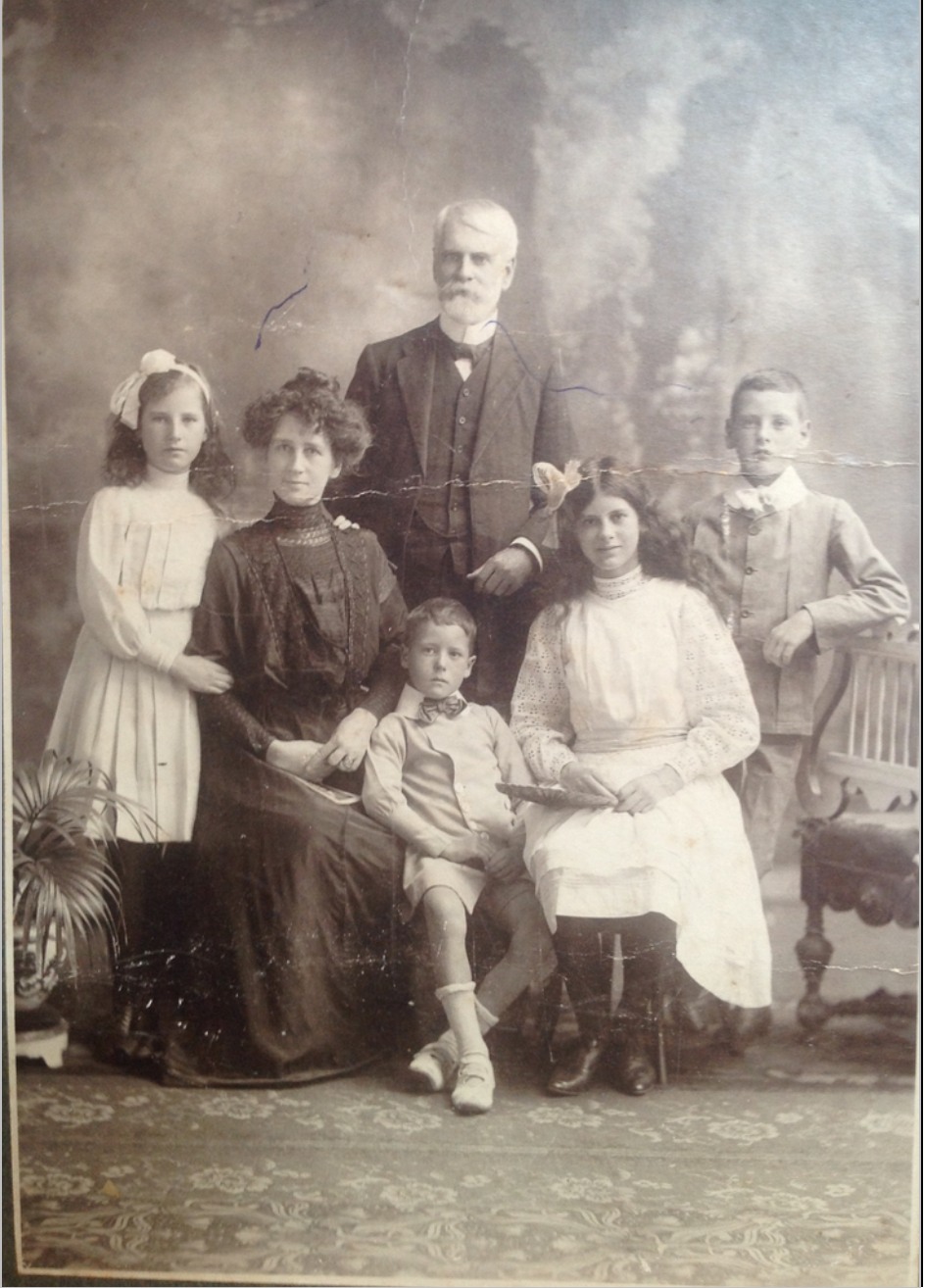
Before
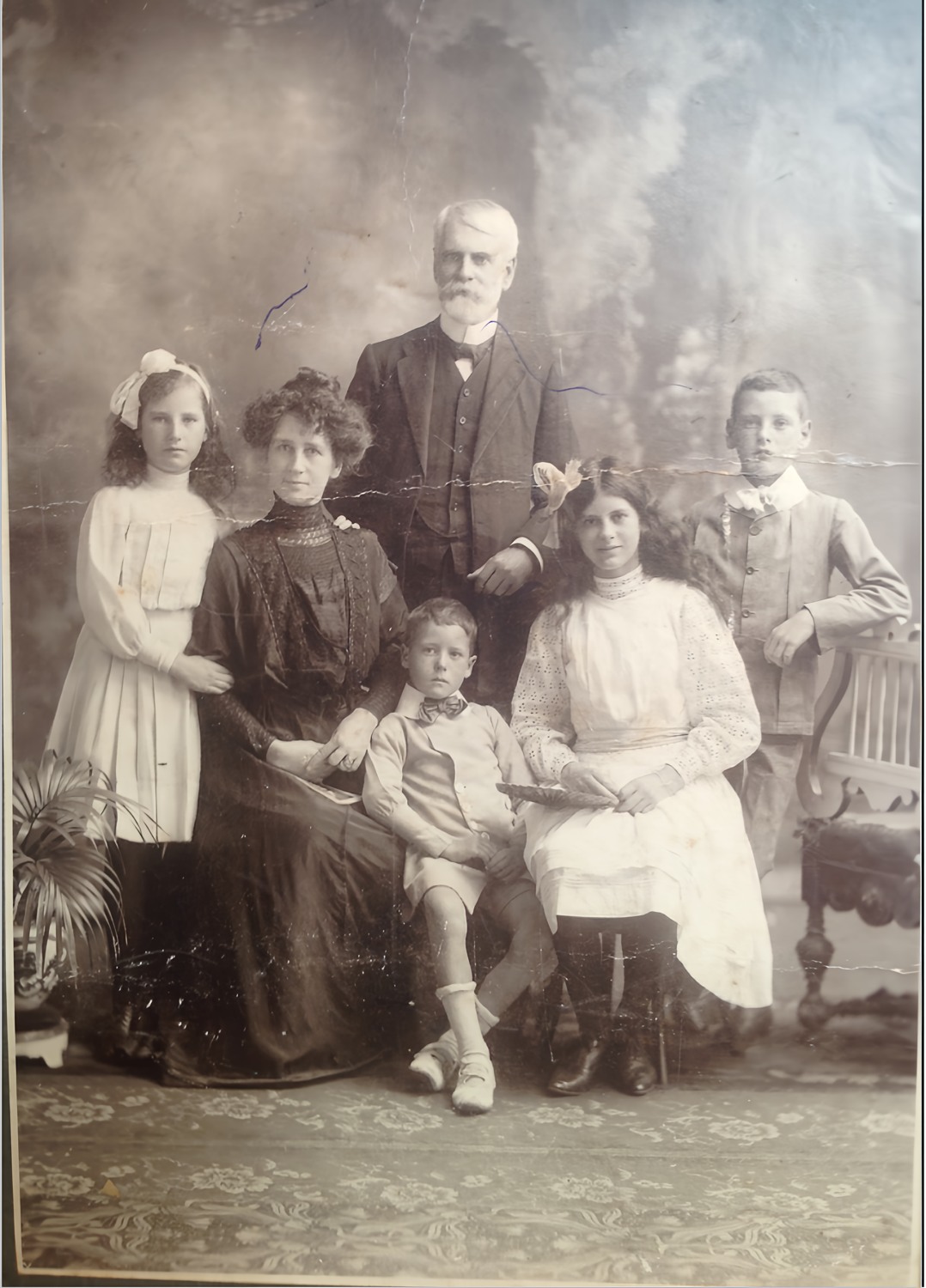
After
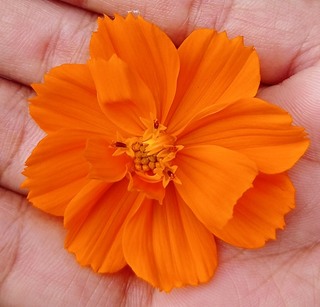
Before
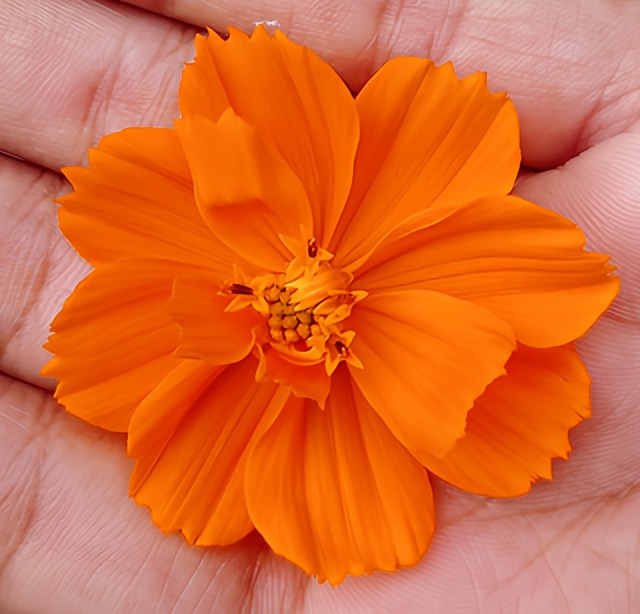
After
Best for
- Small digital photographs
- Low-resolution screenshots
- Slightly soft images with light noise
Not ideal for
- Damaged old photographs — choose Restore
- Images already larger than the available result
More pixels for a small image
Enlarge doubles the width and height of a supported small photograph. A 600 by 800 pixel input would therefore have a 1200 by 1600 pixel target before any disclosed resize. The tool can clean light blur or noise, but it does not repair torn paper or recover a missing face. Choose Restore when scratches and fading are the main concern. An enlarged image is a new processed copy; keep the source for comparison.
Check the size limit before starting
The current input limit is about 1.5 megapixels and the output is about 6 megapixels at most. The editor shows the expected dimensions for the actual file. A larger input needs your permission to resize first, and the final output must still be larger than the original. If no enlargement would be gained, the tool does not offer an ineffective downsize. No silent crop is used to make the file fit.
Three steps to an enlargement
First, upload a supported JPG, PNG or WebP and read the dimensions shown in the editor. Second, accept a disclosed resize only if it makes sense for your photo, then start the 2× enlargement. Third, compare the full frame and important details before downloading. Check letters, fine lines, glasses and faces. A stronger-looking edge can be an estimate, and an enlarged screenshot can still contain the compression artifacts of the screenshot.
Check your original first
Keep an untouched copy of the original file. Look at faces, glasses, jewelry, clothing edges and any writing before you start. Those are useful reference points when you compare the result. A sharper-looking image can contain newly estimated details; extra pixels do not establish what was really in the scene.
Choose a print size from the actual result
Read the output dimensions on the result page rather than using the dimensions of your scan. Divide pixels by inches to estimate print resolution, or use the print size calculator. Paper, viewing distance and the printer also matter. Try one small print before ordering several copies, and ask the printer to preserve the full image rather than silently filling and cropping it.
When a smaller print is the better choice
Enlargement can make a small image easier to place in a layout, but a larger file does not promise a better large print. Try the original and enlarged versions at the same intended paper size. If the enlarged face looks artificial, use a smaller photo area with a text border or leave more white space. A memorial card often needs less picture detail than a large entrance display viewed at close range.
Download, compare and delete
No signup is required, and the displayed daily allowance applies to successful processing. A failed task does not use your free allowance. Our copies of photo-tool images and results are deleted within 24 hours; delete sooner from the result page if you prefer. Download the version you want to keep. If you create a memorial kit from it, that kit keeps a separate copy for its own 30-day period, rather than extending the photo-tool result link.
Questions about this tool
Can I choose 4× enlargement?
No. This tool offers 2×, with an input limit of about 1.5 megapixels and an output of about 6 megapixels.
Will the image be cropped?
The original proportions and edges are kept. Any required resize is disclosed before you start, and the final image must still be larger than the original.
Will enlargement repair scratches?
No. Use Restore for scratches, creases and fading. Enlarge is for small photos with light blur or noise.
Is this free, and do I need an account?
No signup is needed. Free daily limits are 3 restorations, 1 Sharper version, 1 colorization and 5 enlargements per visitor. Failed processing does not use a free allowance; site-wide budget limits can pause processing.
When are my photos deleted?
Our copies of photo-tool originals and results are deleted within 24 hours. You can delete sooner from the result page. A memorial kit is separate and has its own 30-day period.
Can a face or small detail change?
Yes. Faces, glasses, teeth, jewelry and writing may change. Compare every important detail with the original before downloading or printing.